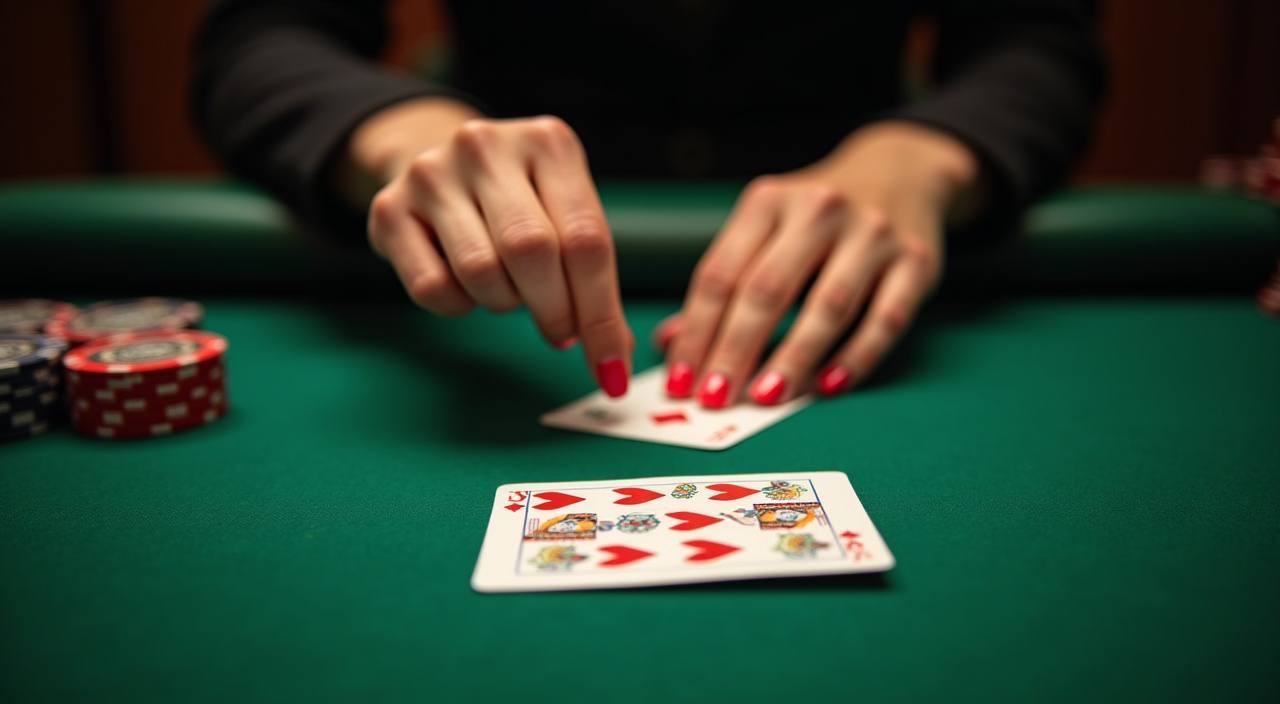
The wowhoky app experience runs straight from your mobile browser — no storefront download required to reach live tables, slots, or sports markets. Open wowhoky on your phone, sign in, and the full lobby loads exactly where you left it. Availability depends on local law and is open to eligible regions.
Reaching the wowhoky lobby on mobile is straightforward — your browser is the app. Open wowhoky in Chrome or Safari on your phone and the site loads its mobile layout automatically. From there, sign in with your registered account details; the cashier, game rooms, and navigation all adapt to your screen without any extra configuration. If you want the lobby a tap away, use your browser's 'Add to Home Screen' option to pin the site as a shortcut on your device. That shortcut opens directly to the lobby, skipping the address bar step each time. Check the Help section inside your account if any access step differs from what you see here — published device guidance is kept current there.
Open the Site
Type wowhoky into your mobile browser address bar. The page detects your screen size and switches to the mobile layout immediately.
Check Browser Compatibility
Chrome and Safari on current Android and iOS versions load the lobby without issues. If a page element looks off, refreshing or clearing cached data usually resolves it.
Sign In to Your Account
Enter your registered email and password. Your wallet balance, game history, and cashier — including OVO and GoPay options — are available as soon as you are logged in.
Pin to Home Screen
Use your browser's share or menu option to add wowhoky as a home screen shortcut. This creates a one-tap path to the lobby without opening a new browser tab each time.
DEVICE CHECKLIST
Check What Your Device Needs
The wowhoky mobile experience is built around browser rendering, so compatibility comes down to a few straightforward things rather than specific hardware specs. Most phones running a current browser version handle the lobby, live casino stream, and cashier without friction. If you are unsure whether your setup is supported, the quickest check is to open wowhoky, navigate to a game room, and see whether it loads as expected. Published device guidance in the Help section reflects the current state of what we support.
Browser Version
Use an up-to-date version of Chrome, Safari, or Firefox. Older browser builds may not render live table streams or the cashier flow correctly — check your browser's update settings if pages load partially.
Screen Layout
The lobby reflows automatically for portrait and landscape orientation. Live casino tables display best in landscape; slots and the sportsbook work well in both. No manual zoom adjustments are needed.
Account Requirements
Full lobby access — including the cashier and game history — requires a verified wowhoky account. Account registration and verification steps are shown on the account page after you open it.
Currently Supported Devices
We publish a current device compatibility note in the Help section of your account dashboard. Check there for the latest list rather than relying on a fixed spec listed here, since it is updated as we test new builds.
Connection Quality
Live casino streams run smoothly on a stable 4G or Wi-Fi connection. Slot games from CQ9, Pragmatic Play, and Habanero are lighter on bandwidth and load well even on a moderate signal.
APP HELP ROUTES
Reach Support for App Access Questions
If something in the mobile experience is not working as expected — a page that won't load, a sign-in step that looks different, or a cashier screen that doesn't display your OVO or GoPay option — our support team handles app access questions directly. The three routes below connect you to the right help path depending on how quickly you need a response. For account-specific issues, have your registered email ready so the team can pull up your details without back-and-forth.
Live Chat
Open the chat icon from the wowhoky lobby — available while the site is running — to ask about browser access, account sign-in, or any screen that isn't loading as expected on your device. Responses come from the Indonesia support team.
Email Support
Send a message to the support address listed on the Contact page inside your account. Include your device model, browser version, and a short description of the access issue so the team can respond with a specific fix rather than a general walkthrough.
In-App Help Pages
The Help section inside your logged-in account dashboard carries published guidance on device compatibility, browser steps, and the current state of mobile access. Check there first — many common access questions are answered without needing to open a support ticket.
ACCESS TRUST CHECKS
Verify Your wowhoky Mobile Access Is Secure
Accessing any casino lobby from a mobile browser means a few basic security habits matter more than on desktop. The points below are not abstract advice — they map directly to things you can verify inside your wowhoky account and in your browser's address bar right now. If anything looks off when you open the site, do not proceed past the sign-in screen; use the support routes in the section above instead.
Confirm the Domain
Before signing in, check that your browser address bar shows wowhoky exactly. Bookmark the verified URL after your first login so you always open the correct domain rather than a search result that could point elsewhere.
Review Published Device Guidance
The Help section inside your account shows which browser builds and device types we currently support. If your device is listed as unsupported, access may be unreliable — check the guidance before troubleshooting further.
Protect Your Account Credentials
Use a password that is unique to your wowhoky account and not shared with email or other services. The account page shows your active sessions — review it if you think your credentials were used on an unrecognised device.
Use the Published Recovery Path
If you lose access to your account, use only the password recovery flow shown on the sign-in page at wowhoky. Do not share recovery codes or account details through chat or third-party channels claiming to represent us.
WHAT THE APP DELIVERS
Inside the wowhoky Mobile Experience
The mobile version of wowhoky is built around the same lobby structure you see on desktop — the navigation bar at the top groups live casino, slots, and sportsbook into separate rooms so you can move between them with one tap rather than scrolling through a flat list. Live tables from CQ9 and Pragmatic Play load in the live casino room; slot titles from Habanero, Bigtime Gaming, and PlayStar sit in the slots section. The sportsbook room carries football markets including Liga 1 and European fixtures. Your account wallet, transaction record, and the cashier — where OVO and GoPay appear as payment options — are reachable from the account icon in the top corner. Help pages and the support chat open from the same navigation without leaving the lobby. The layout is responsive and adjusts to your screen without manual resizing.
MOBILE PAGE BEHAVIOUR
How the Mobile Lobby Behaves on Your Screen
These are the rendered page behaviours you can verify directly in the wowhoky mobile browser session — not inferred capabilities. What you see when you open the lobby on your phone is what is listed here.
Responsive Navigation
The top navigation bar collapses into a compact layout on smaller screens. Live casino, slots, and sportsbook tabs remain individually tappable so switching rooms never requires a back-button chain or full page reload.
Account and Wallet Access
Your wallet balance and the cashier — including OVO and GoPay — are reachable via the account icon without leaving the current game lobby page. The transaction record updates in the same view after each cashier action.
Game Discovery Layout
Slot titles and live table thumbnails render in a scrollable grid that adapts to portrait orientation. Game names, studio labels from providers like Habanero and Pragmatic Play, and RTP where the provider publishes it are shown on each card.
Help Page Access
The Help section and support chat load within the same browser session as the lobby. You do not need to open a separate browser tab or leave the wowhoky domain to reach published device guidance or raise a support query.
APP QUESTIONS ANSWERED
Common Questions About the wowhoky App
Below are the questions we see most from Indonesia players about accessing wowhoky on mobile. If your question isn't here, the Help section inside your account dashboard carries the current published guidance.
Is there a wowhoky app I can download from the App Store or Google Play?
We have not published a native app listing in either store at this time. The full lobby — live casino, slots, sportsbook, and cashier — is available through your mobile browser at wowhoky. You can add it to your home screen as a shortcut for one-tap access.
Which browser works with the wowhoky mobile site?
Current versions of Chrome and Safari on Android and iOS load the lobby and live table streams without issues. If a room or the cashier displays incorrectly, update your browser to its latest build and clear cached data, then reload wowhoky.
Can I access my OVO and GoPay payment options on mobile?
Yes. The cashier inside your logged-in account shows OVO and GoPay as available options on mobile the same way it does on desktop. Open the account icon from the top navigation bar and the cashier loads in the same browser session.
How do I add the wowhoky lobby to my phone's home screen?
Open wowhoky in your mobile browser, then use the browser's share menu — the square-with-arrow icon on Safari, or the three-dot menu on Chrome — and select 'Add to Home Screen'. The shortcut opens directly to the lobby without typing the address each time.
Why is the live casino stream choppy on my phone?
Live table streams from Pragmatic Play and CQ9 run smoothly on a stable 4G or Wi-Fi connection. A weak signal causes buffering. Try switching to Wi-Fi or moving to a stronger signal area. If the issue continues on a good connection, check the Help section in your account for published device guidance.
Where can I check whether my device is currently supported?
The Help section inside your logged-in account dashboard carries a current device compatibility note that we update as we test new browser builds. That is the accurate reference — not a fixed list on this page, which may not reflect the most recent changes to supported configurations.
 Mobile / Live