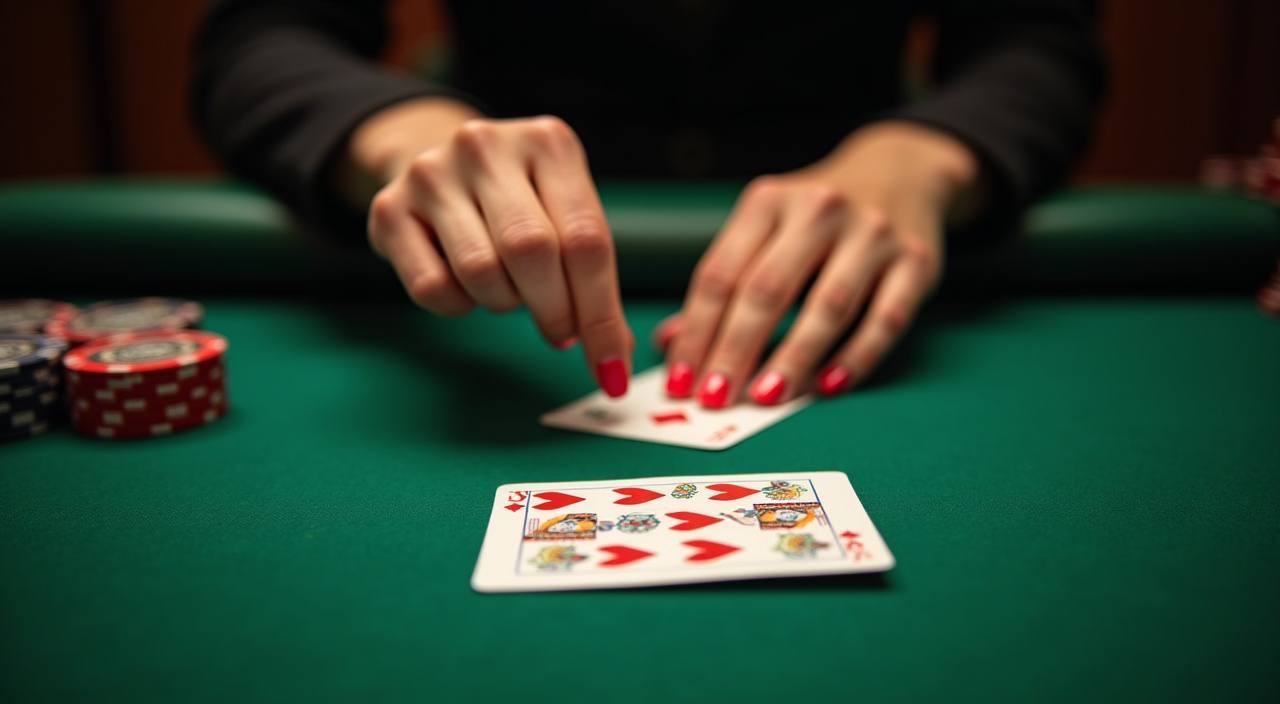
Everything you need to know about your wowhoky account is collected here — from how to top up with OVO or GoPay, to switching between live tables and slots, to reaching our support team when something needs sorting. If your question isn't listed, our support channel is one tap away from the account menu.
When an account issue or transaction question comes up, you don't need to search for a contact path. wowhoky keeps three support routes open so you can pick the one that suits your situation. Check the Help section inside your account dashboard for the current availability status of each channel — we show it there rather than publishing static hours that may not reflect real-time access.
Live Chat
Open the chat icon from any page inside your account. Live chat connects you to our team directly and is the quickest route for deposit questions, wallet verification, or navigation help. The icon is visible after you log in.
Email Support
For account-level requests that need documentation — identity verification, transaction history, or access queries — send a message to our support address listed in the Help section of your account. We respond in the order received.
Account Help Center
The Help section inside your dashboard covers the most common FAQ topics: topping up via OVO or GoPay, switching game modes, reading your transaction log, and updating account details. Check there first for step-by-step guidance.
PLATFORM SIGNALS
What Stays Consistent Across wowhoky
These are the structural constants of the platform — the things that work the same way whether you're on mobile browsing Pragmatic Play slots, sitting at a CQ9 live table, or checking a Badminton Asia Championship Bet line on sportsbook. One account connects all three areas, and one wallet handles every transaction across them.
Single Account Access
One login covers live casino, slots, and sportsbook. There is no separate registration for each section. Your account page shows all activity in one transaction log, and your wallet balance reflects across every game area the moment a deposit is confirmed.
Local Payment Rails
OVO and GoPay are built into the cashier screen — not a third-party redirect. Select your e-wallet, enter the amount within the limits shown, and follow the confirmation steps your wallet app displays. DANA is also listed in the payment section of your account.
Mobile-Ready Navigation
The full lobby — live tables, slot rooms, and sports markets — loads in a mobile browser without needing a separate download. Game categories and the cashier are reachable from the bottom navigation bar on smaller screens, keeping the flow consistent with desktop.
Transaction History
Every deposit and withdrawal is logged in your account dashboard under Transaction History. The record updates after each confirmed action. If a figure looks unexpected, the log is the first place to check before contacting support — it shows the status, amount, and payment method used.
THREE PLAY AREAS
Live Tables, Slots, and Sportsbook Side by Side
The three sections of the lobby serve different pacing preferences, but they share the same account infrastructure. Your OVO or GoPay balance doesn't need to be moved between sections — the wallet reads the same everywhere. Support, transaction records, and account settings are identical across all three. The differences are in how each section runs a round and how much control you have over the pace.
Live Casino Tables
Rounds are run by a live dealer on a real table. The pace is set by the dealer, not by you. Habanero and Pragmatic Play both supply live table content accessible from the Live Casino section of the lobby.
Slots and Card Games
You set the pace. Spin when you're ready, pause when you need to. CQ9, PlayStar, and Bigtime Gaming titles sit in the Slots section. Each game shows its own mechanics — including any bonus round details — on the game info screen before you start.
Sportsbook Markets
Football markets — including Liga 1 and European fixtures — are listed under Sports. Odds update according to the data feed. Badminton Asia Championship Bet lines are also available when events are scheduled. Check the sports lobby for what's currently open.
What's Always the Same
One account, one wallet, one transaction log, one support team. Switching from a Bigtime Gaming slot to a live Roulette table or a football market doesn't require a new login or a separate balance. The cashier and help routes are identical from every section.
LOBBY OVERVIEW
Key Features of the wowhoky Lobby
Understanding how the lobby is structured makes it easier to navigate to exactly what you came for. wowhoky organises its content into three clearly labelled sections from the main menu — Live Casino, Slots, and Sports — so you're never more than one tap from the game type you want. The features below reflect what's visibly built into the platform as you browse.
Studio Content from Five Providers
Pragmatic Play, CQ9, PlayStar, Habanero, and Bigtime Gaming supply the game catalogue. Each studio's titles are browsable within the relevant section. Game-level RTP is shown only where the studio or game itself exposes that figure in the game info panel.
Aviator Fast Round Access
Aviator Fast Round sits in the crash games area of the lobby, reachable from the main menu. Rounds resolve quickly and the result is visible on screen as soon as each round closes. Your stake and outcome are recorded in the transaction log immediately.
Golden Garuda Slots Section
Golden Garuda Slots and other themed slot titles are grouped by category in the Slots section. Filter by provider or game type to narrow the view. Each title opens with a game-info screen that covers mechanics, paylines, and any bonus round structure before you place a stake.
Fishing War Fast Round
Fishing War Fast Round is available in the arcade and fast-round section of the lobby. The mechanics differ from standard reel slots — the result depends on the target you select and the multiplier shown on screen at the time. Game rules are always accessible from the info button inside the game.
Reference / 06
What This FAQ Page Covers
This FAQ page is the reference point for common questions about your wowhoky account, the games in the lobby, and how transactions work. It is not a general casino guide — every answer here is specific to how this platform is set up for Indonesia, with OVO, GoPay, and DANA as the primary payment options built into the cashier. The questions below are organised around the topics that come up most often: adding funds to your account, understanding the difference between live tables and self-paced games, finding a specific game category, and knowing where to look when a transaction needs checking. If you have a question that isn't covered here, the Help section inside your account dashboard holds additional detail, and our support team is reachable from the contact routes listed in the section above. Availability of all services depends on local law and the eligible regions in which wowhoky operates. Where access or eligibility is discussed in these answers, it applies where local law permits.
OVO
GoPay
DANA
STRUCTURAL FACTS
Platform at a Glance
Play areas: Live Casino, Slots, Sportsbook
3
Game studios in the lobby
5
Local e-wallets in the cashier: OVO, GoPay, DANA
3
Account and wallet shared across all sections
1
COMMON QUESTIONS
Frequently Asked Questions
These are the questions we hear most often from Indonesia players. Each answer reflects how wowhoky is actually configured — the payment methods in the cashier, the game sections in the lobby, and the support routes available from your account page.
How do I top up my account using OVO or GoPay?
Open the Cashier from your account dashboard and select OVO or GoPay from the payment options. Enter an amount within the minimum and maximum limits shown on that screen, then confirm the transaction in your e-wallet app. The deposit appears in your Transaction History once the payment is confirmed by your wallet provider.
What is the difference between the Live Casino section and the Slots section?
In Live Casino, rounds are run by a live dealer on a real table — the pace is theirs, not yours. In Slots, you control when each round starts. Studios like Habanero and Pragmatic Play supply live table content; CQ9, PlayStar, and Bigtime Gaming titles sit in the Slots section. One account and wallet works across both.
Where can I find my transaction history?
Log in and go to your account dashboard. Transaction History is listed there and shows every deposit, withdrawal, and game-related transaction in order. Each entry includes the payment method used, the amount, and the current status. If a figure looks unexpected, check the status field before contacting support.
Can I use DANA to deposit as well as OVO and GoPay?
Yes. DANA is listed alongside OVO and GoPay in the Cashier section of your account. Select DANA, enter the amount within the displayed limits, and complete the transfer in your DANA app. All three e-wallets follow the same deposit flow and record to the same Transaction History.
How do I switch between sportsbook and casino without losing my place?
Use the main navigation menu — Live Casino, Slots, and Sports are all accessible from the same menu bar. Your wallet balance carries across sections automatically. There is no separate login or balance transfer required. Switching sections takes you to that lobby's current state; your account session stays active throughout.
What should I do if a deposit shows as pending in my transaction history?
A pending status means the payment has been submitted but not yet confirmed by your e-wallet provider. Wait a few minutes and refresh the Transaction History page. If the status has not updated after a reasonable period, contact our support team via live chat with the transaction reference number visible in your history log.
How do I find specific game studios like CQ9 or Bigtime Gaming in the lobby?
In the Slots section, use the provider filter at the top of the game grid to select a specific studio. Selecting CQ9, Bigtime Gaming, PlayStar, or any other listed provider narrows the display to that studio's titles only. The filter resets when you leave the section, so your default view returns on the next visit.
 Mobile / Live